# BOS Overview and General Navigation

### **Landing Page**

![Landing.png](https://bookstack.cores.utah.edu/uploads/images/gallery/2024-01/scaled-1680-/M6Zlanding.png)

### **Logging In To BOS**

BOS utilizes the University of Utah's Duo authentication for logging in. To log in, click one of the two 'Log In' buttons, either on the top navigation bar or in the middle of the page. This will attempt to authenticate against the University of Utah's system - so if you already have an active log in, you will automatically be directed to the BOS home page, otherwise, it will redirect you to the DUO login page.

![Login_buttons.png](https://bookstack.cores.utah.edu/uploads/images/gallery/2024-01/scaled-1680-/login-buttons.png)

### **Home Page**

The BOS Home Page has a list of tiles that link to common tasks. *<span style="color: rgb(52, 73, 94);">These links will vary depending on your role(s)</span>.*

**![HomePage.png](https://bookstack.cores.utah.edu/uploads/images/gallery/2024-01/scaled-1680-/homepage.png)**

<p class="callout info">**Menu items along the top and side navigation bars along with the link tiles seen on the Home Page will vary depending on your BOS role(s).**</p>

### **BOS Navigation**

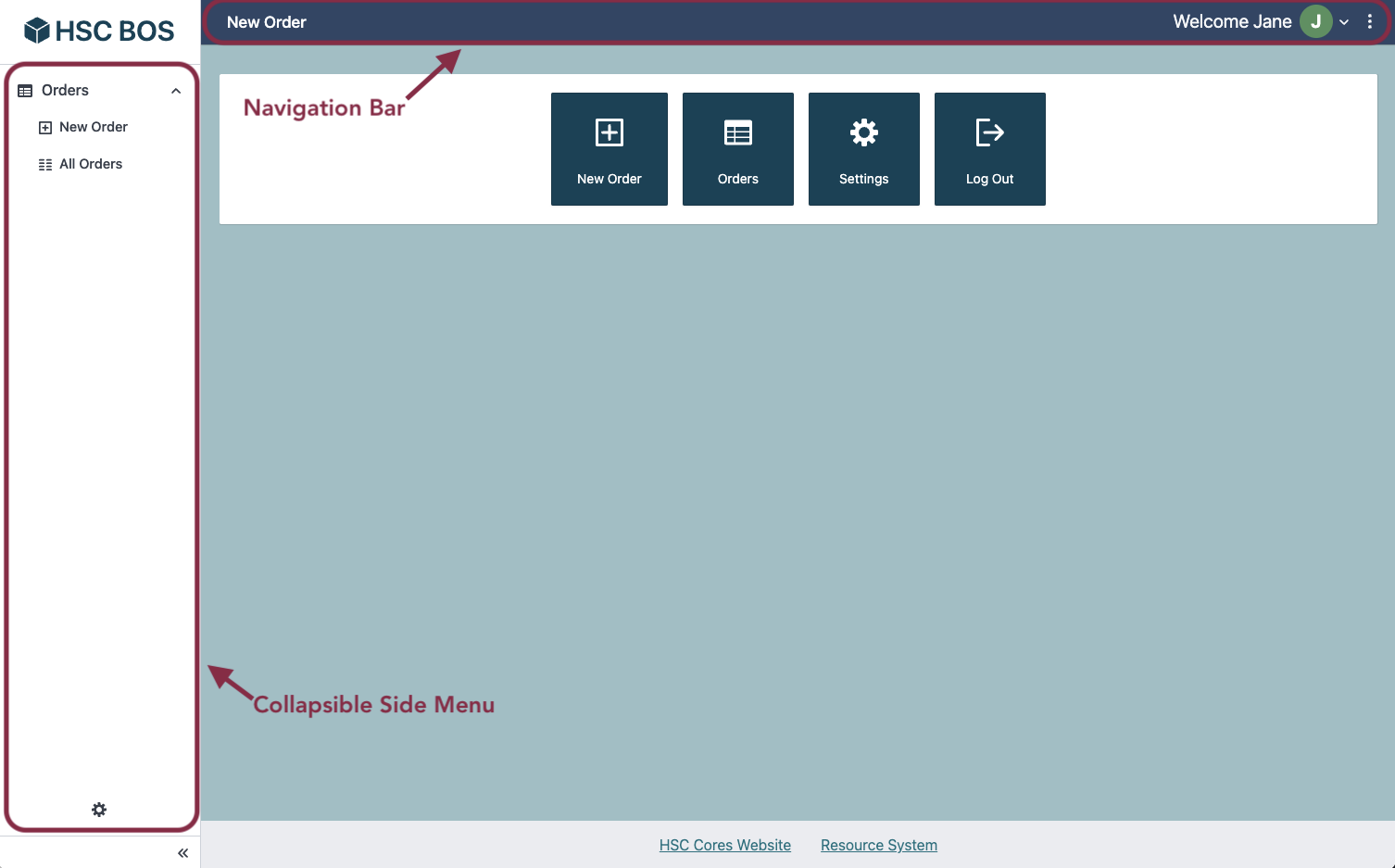
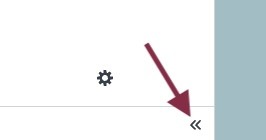
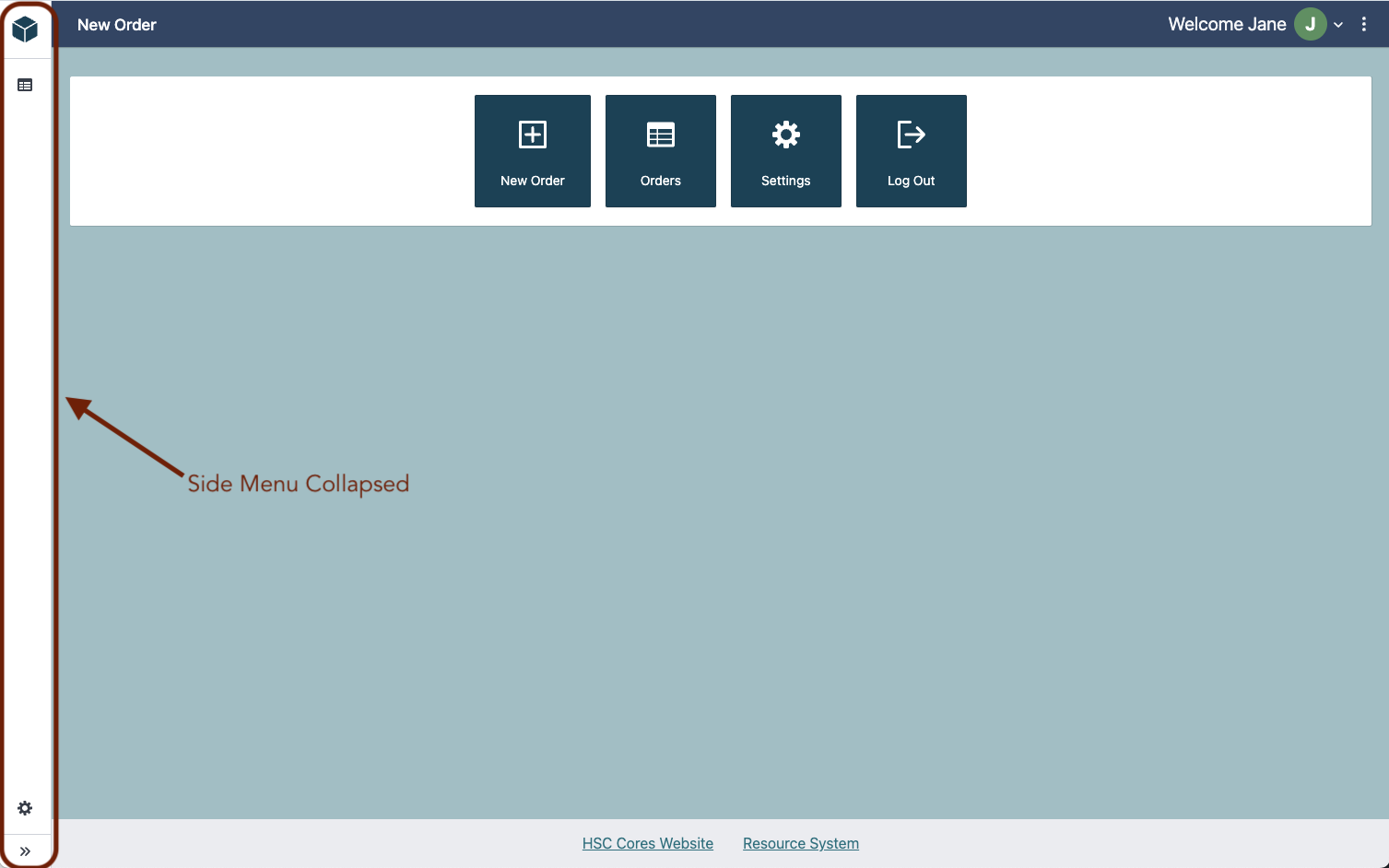
The BOS System is designed to be easily navigable. There is a **collapsible side menu** along with a **navigation bar** along the top. The side menu, expanded by default, can collapse or expand using the double caret button at the bottom of the menu. <span style="color: rgb(52, 73, 94);">*The menu items will vary depending on your role(s).*</span>

![HomePage_labeled.png](https://bookstack.cores.utah.edu/uploads/images/gallery/2024-01/scaled-1680-/homepage-labeled.png)

![Expand/Collapse button](https://bookstack.cores.utah.edu/uploads/images/gallery/2024-01/scaled-1680-/expand-icon.jpg)

![SideMenuCollapsed.png](https://bookstack.cores.utah.edu/uploads/images/gallery/2024-01/scaled-1680-/sidemenucollapsed.png)

#### **Top Navigation**

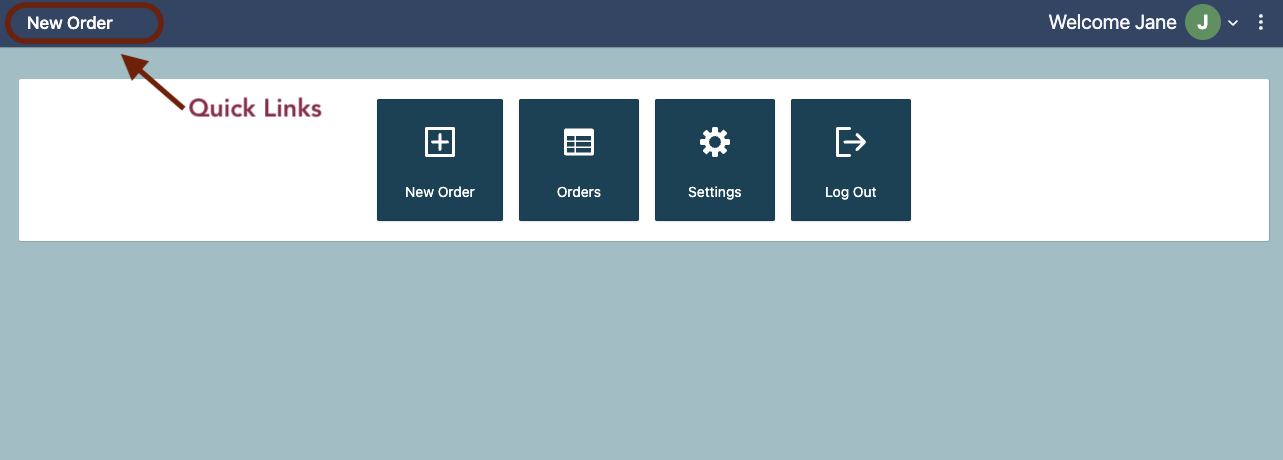
The top navigation bar includes **Quick links** along the left. <span style="color: rgb(52, 73, 94);">*These links will vary depending on your role(s)*</span>.

![NavBar_quickLinks_labeled.png](https://bookstack.cores.utah.edu/uploads/images/gallery/2024-01/scaled-1680-/navbar-quicklinks-labeled.png)

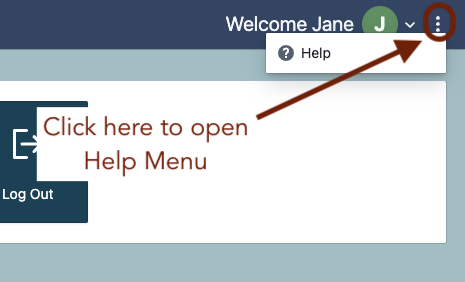
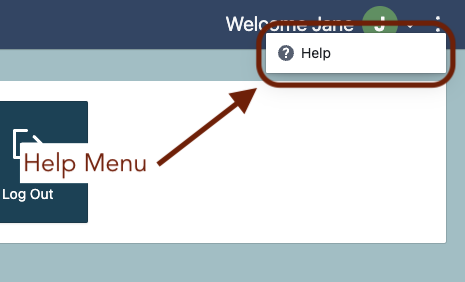
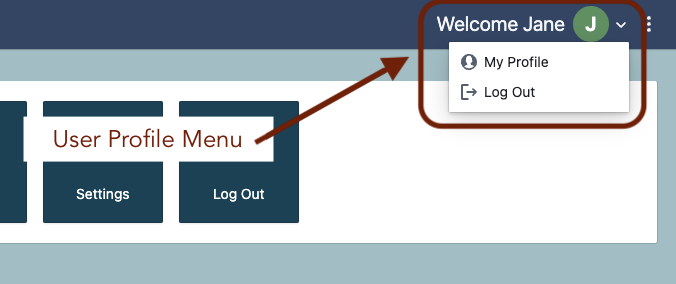
Along the right, the navigation bar has a **User** **Profile Menu,** and a **Help Menu** (accessed by clicking the 3 dot icon on the far right).
![AccountMenu.png](https://bookstack.cores.utah.edu/uploads/images/gallery/2024-01/scaled-1680-/2zhaccountmenu.png)

![HelpMenu_clickHere.png](https://bookstack.cores.utah.edu/uploads/images/gallery/2024-01/scaled-1680-/helpmenu-clickhere.png) ![HelpMenu_labeled.png](https://bookstack.cores.utah.edu/uploads/images/gallery/2024-01/scaled-1680-/helpmenu-labeled.png)

The help menu link will direct you to the **Help Page** which has a link back to this BOS BookStack shelf along with some email links as seen below.

[![HelpPage.png](https://bookstack.cores.utah.edu/uploads/images/gallery/2024-01/scaled-1680-/helppage.png)](https://bookstack.cores.utah.edu/uploads/images/gallery/2024-01/helppage.png)
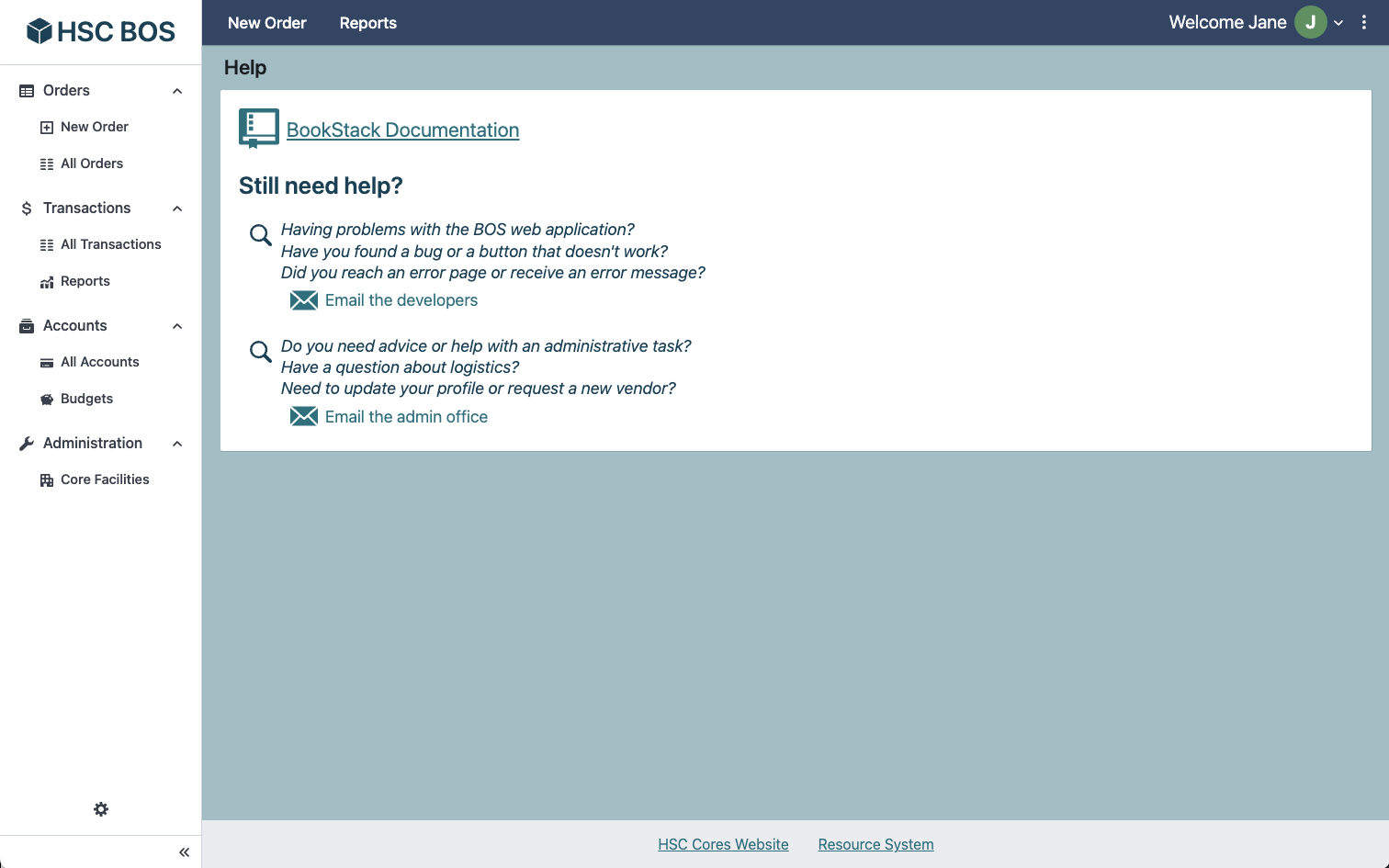
*<span style="color: rgb(52, 73, 94);">(Note that the navigation menu items on this screenshot are those available to **Lab Managers**.)</span>*