# BOS Administrator's Guide

# BOS Overview and General Navigation

### **Landing Page**

![Landing.png](https://bookstack.cores.utah.edu/uploads/images/gallery/2024-01/scaled-1680-/M6Zlanding.png)

### **Logging In To BOS**

BOS utilizes the University of Utah's Duo authentication for logging in. To log in, click one of the two 'Log In' buttons, either on the top navigation bar or in the middle of the page. This will attempt to authenticate against the University of Utah's system - so if you already have an active log in, you will automatically be directed to the BOS home page, otherwise, it will redirect you to the DUO login page.

![Login_buttons.png](https://bookstack.cores.utah.edu/uploads/images/gallery/2024-01/scaled-1680-/login-buttons.png)

### **Home Page**

The BOS Home Page has a list of tiles that link to common tasks. *<span style="color:rgb(52,73,94);">These links will vary depending on your role(s)</span>.*

**![HomePage.png](https://bookstack.cores.utah.edu/uploads/images/gallery/2024-01/scaled-1680-/homepage.png)**

<p class="callout info">**Menu items along the top and side navigation bars along with the link tiles seen on the Home Page will vary depending on your BOS role(s).**</p>

### **BOS Navigation**

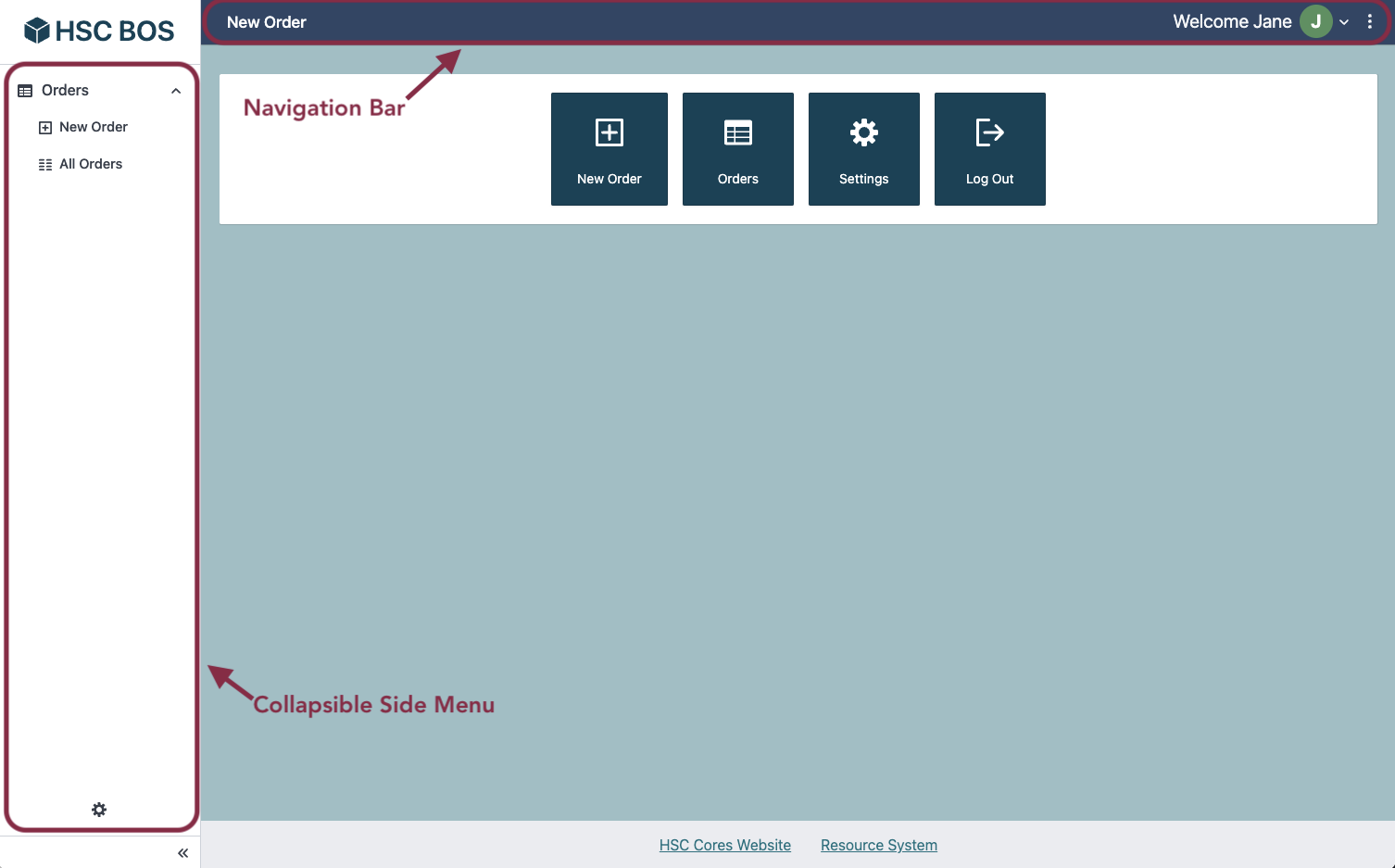
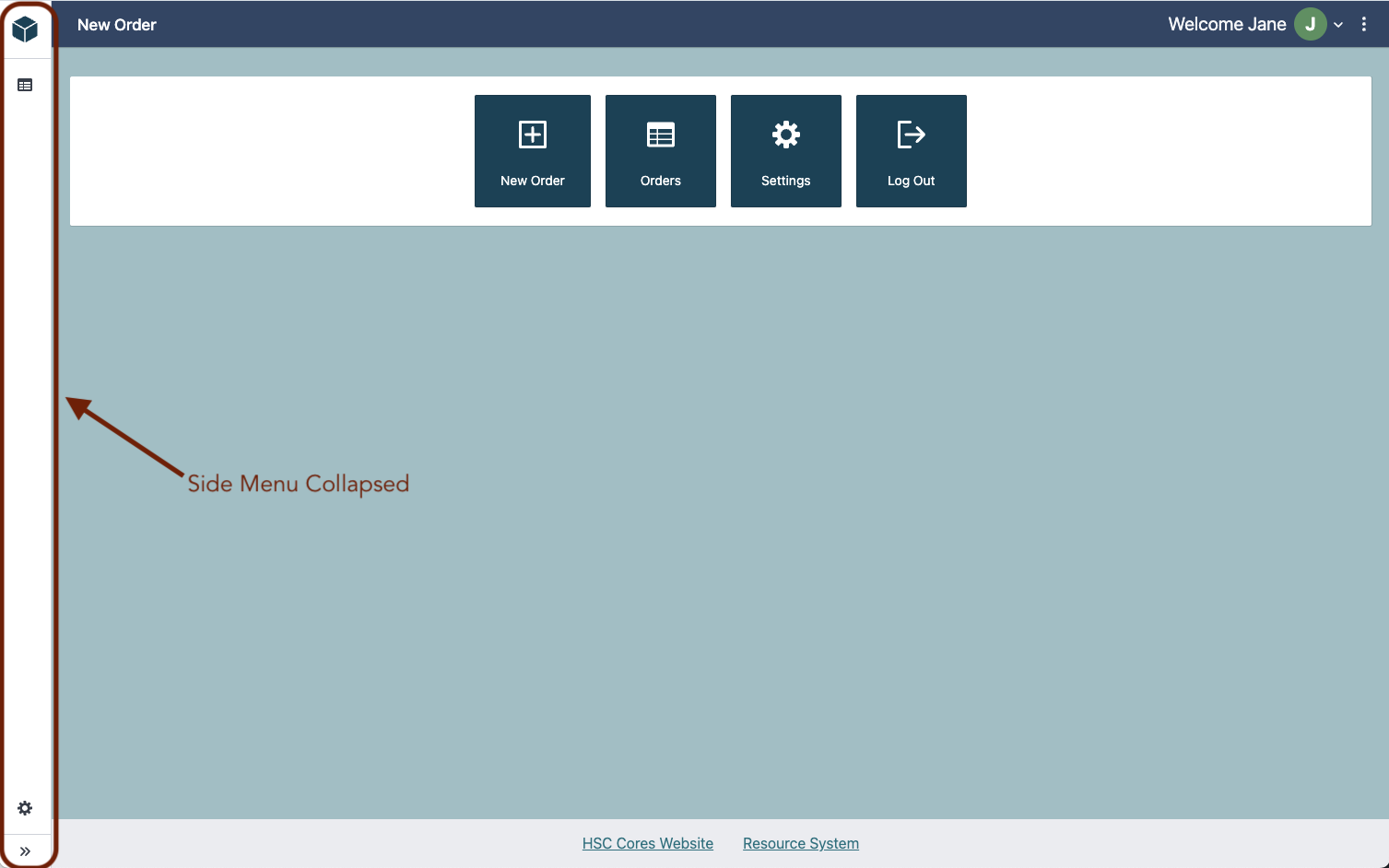
The BOS System is designed to be easily navigable. There is a **collapsible side menu** along with a **navigation bar** along the top. The side menu, expanded by default, can collapse or expand using the double caret button at the bottom of the menu. <span style="color:rgb(52,73,94);">*The menu items will vary depending on your role(s).*</span>

![HomePage_labeled.png](https://bookstack.cores.utah.edu/uploads/images/gallery/2024-01/scaled-1680-/homepage-labeled.png)

![Expand/Collapse button](https://bookstack.cores.utah.edu/uploads/images/gallery/2024-01/scaled-1680-/expand-icon.jpg)

![SideMenuCollapsed.png](https://bookstack.cores.utah.edu/uploads/images/gallery/2024-01/scaled-1680-/sidemenucollapsed.png)

#### **Top Navigation**

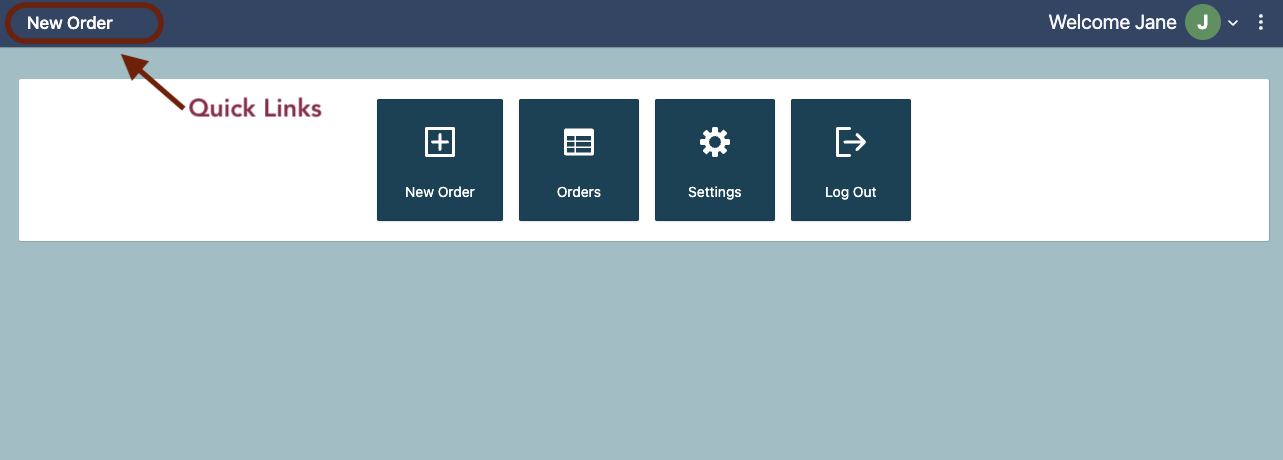
The top navigation bar includes **Quick links** along the left. <span style="color:rgb(52,73,94);">*These links will vary depending on your role(s)*</span>.

![NavBar_quickLinks_labeled.png](https://bookstack.cores.utah.edu/uploads/images/gallery/2024-01/scaled-1680-/navbar-quicklinks-labeled.png)

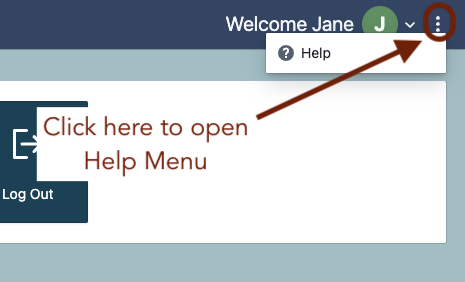
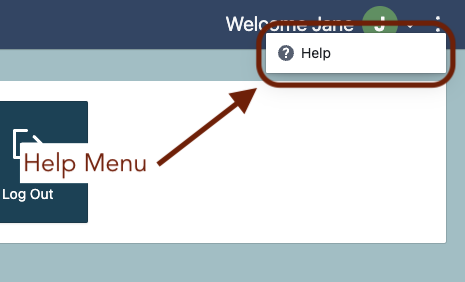
Along the right, the navigation bar has a **User** **Profile Menu,** and a **Help Menu** (accessed by clicking the 3 dot icon on the far right).
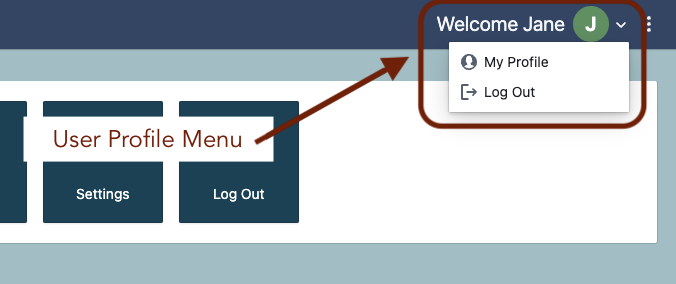
![AccountMenu.png](https://bookstack.cores.utah.edu/uploads/images/gallery/2024-01/scaled-1680-/2zhaccountmenu.png)

![HelpMenu_clickHere.png](https://bookstack.cores.utah.edu/uploads/images/gallery/2024-01/scaled-1680-/helpmenu-clickhere.png) ![HelpMenu_labeled.png](https://bookstack.cores.utah.edu/uploads/images/gallery/2024-01/scaled-1680-/helpmenu-labeled.png)

The help menu link will direct you to the **Help Page** which has a link back to this BOS BookStack shelf along with some email links as seen below.

[![HelpPage.png](https://bookstack.cores.utah.edu/uploads/images/gallery/2024-01/scaled-1680-/helppage.png)](https://bookstack.cores.utah.edu/uploads/images/gallery/2024-01/helppage.png)
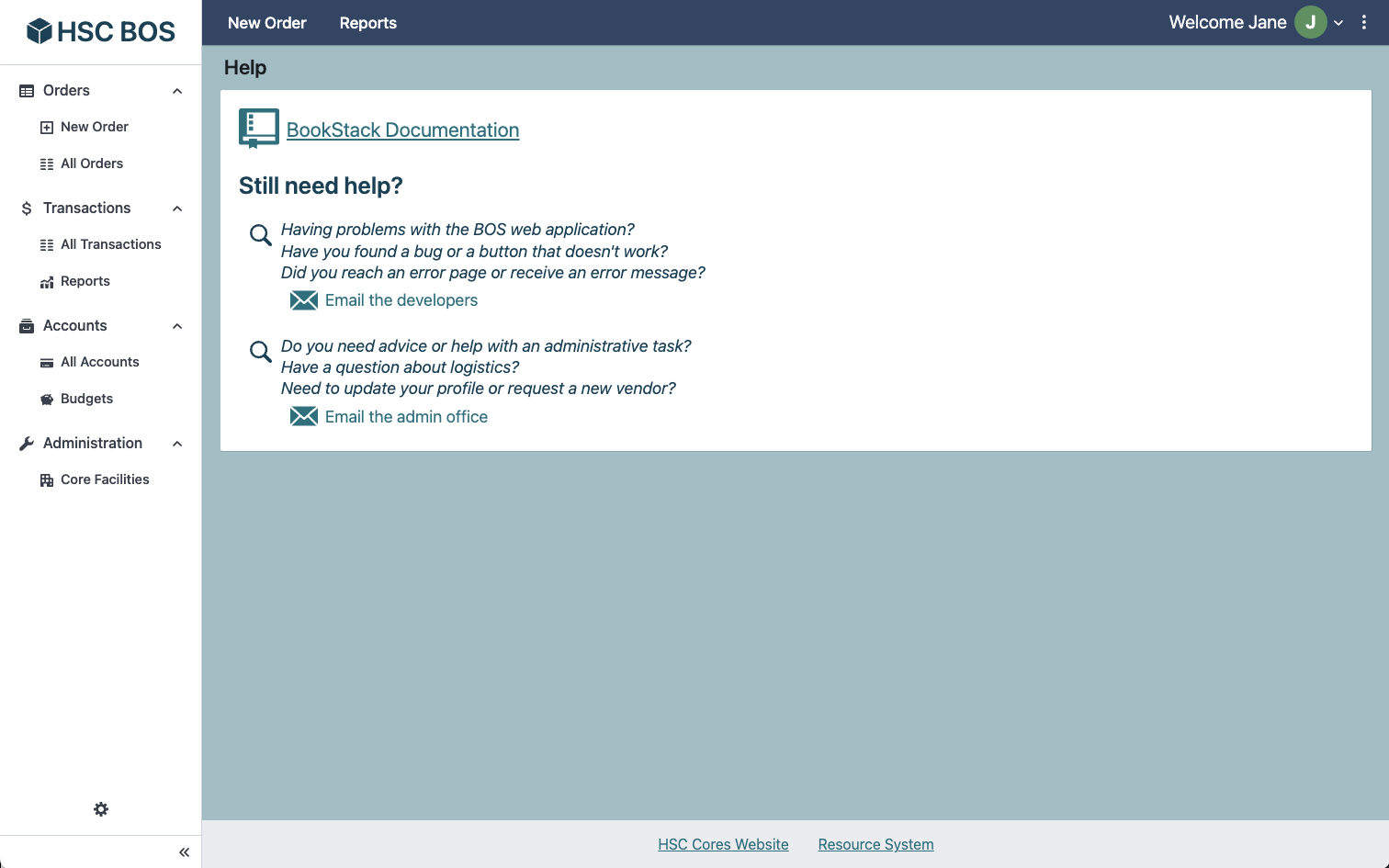
*<span style="color:rgb(52,73,94);">(Note that the navigation menu items on this screenshot are those available to **Lab Managers**.)</span>*

# BOS Session Configuration

You can update your BOS session configuration from the **Session Configuration Page** accessed by clicking the **gear icon** on the bottom of the Side Navigation Menu.
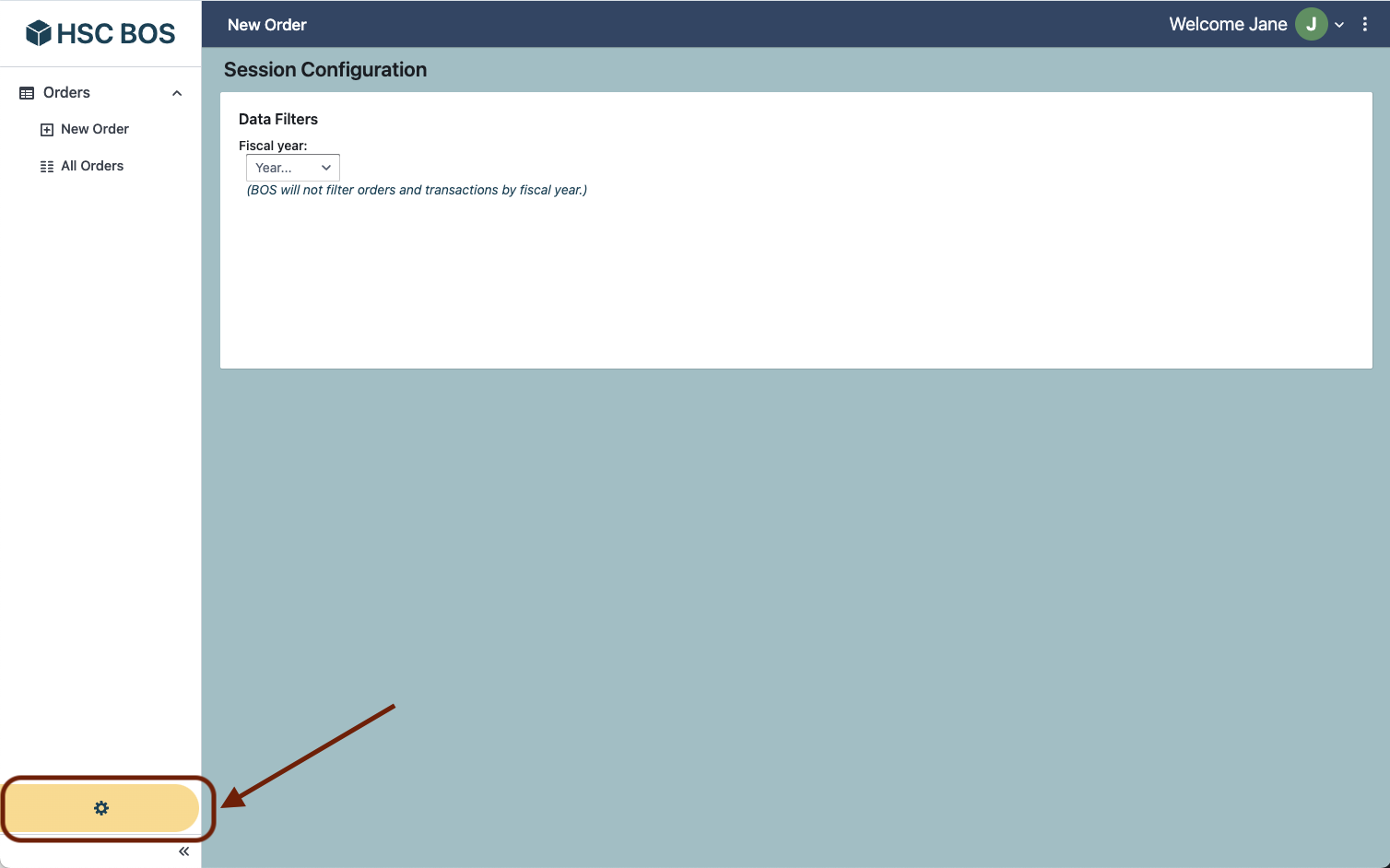
![ConfigPage.png](https://bookstack.cores.utah.edu/uploads/images/gallery/2024-01/scaled-1680-/configpage.png)

Here, you can opt to have BOS filter orders/transactions by fiscal year. Just click the arrow in the Fiscal Year drop down and then select a year.
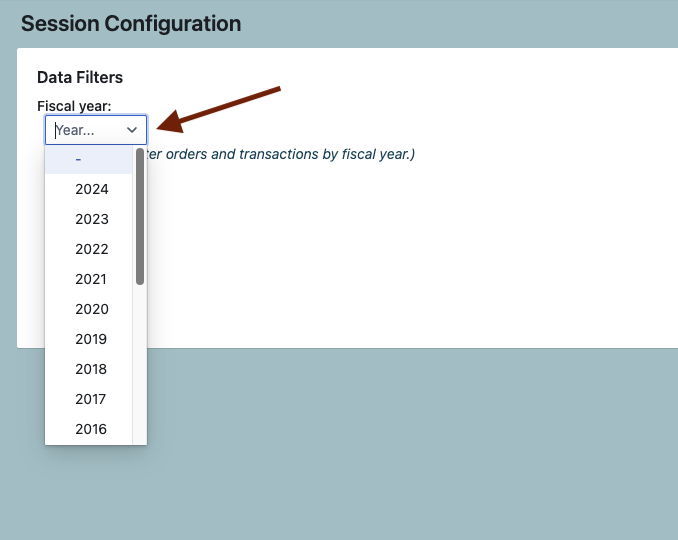
![Config_DateFilterOpened.png](https://bookstack.cores.utah.edu/uploads/images/gallery/2024-01/scaled-1680-/config-datefilteropened.png)

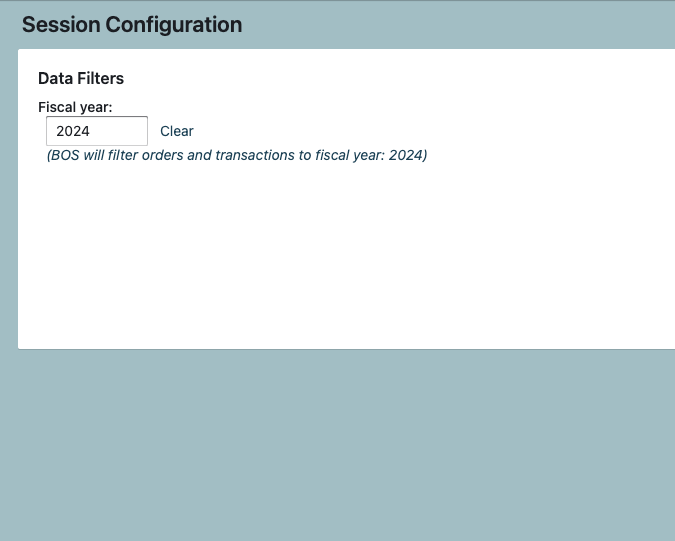
If a year is selected, the note will be updated and a clear button will become available. This will cause BOS to automatically filter orders and transactions. *This filter does not apply to Reports (accessible by those with permission only).*

[![Config_DateSelected.png](https://bookstack.cores.utah.edu/uploads/images/gallery/2024-01/scaled-1680-/config-dateselected.png)](https://bookstack.cores.utah.edu/uploads/images/gallery/2024-01/config-dateselected.png)
# User Profile

You can view and (partially) edit your own user information in BOS from the **User Profile Page**. You can access this page from the top navigation bar.

![AccountMenu.png](https://bookstack.cores.utah.edu/uploads/images/gallery/2024-01/scaled-1680-/2zhaccountmenu.png)

The profile page shows your profile information in 2 boxes. The first contains your user details, the second displays all addresses on file for you.
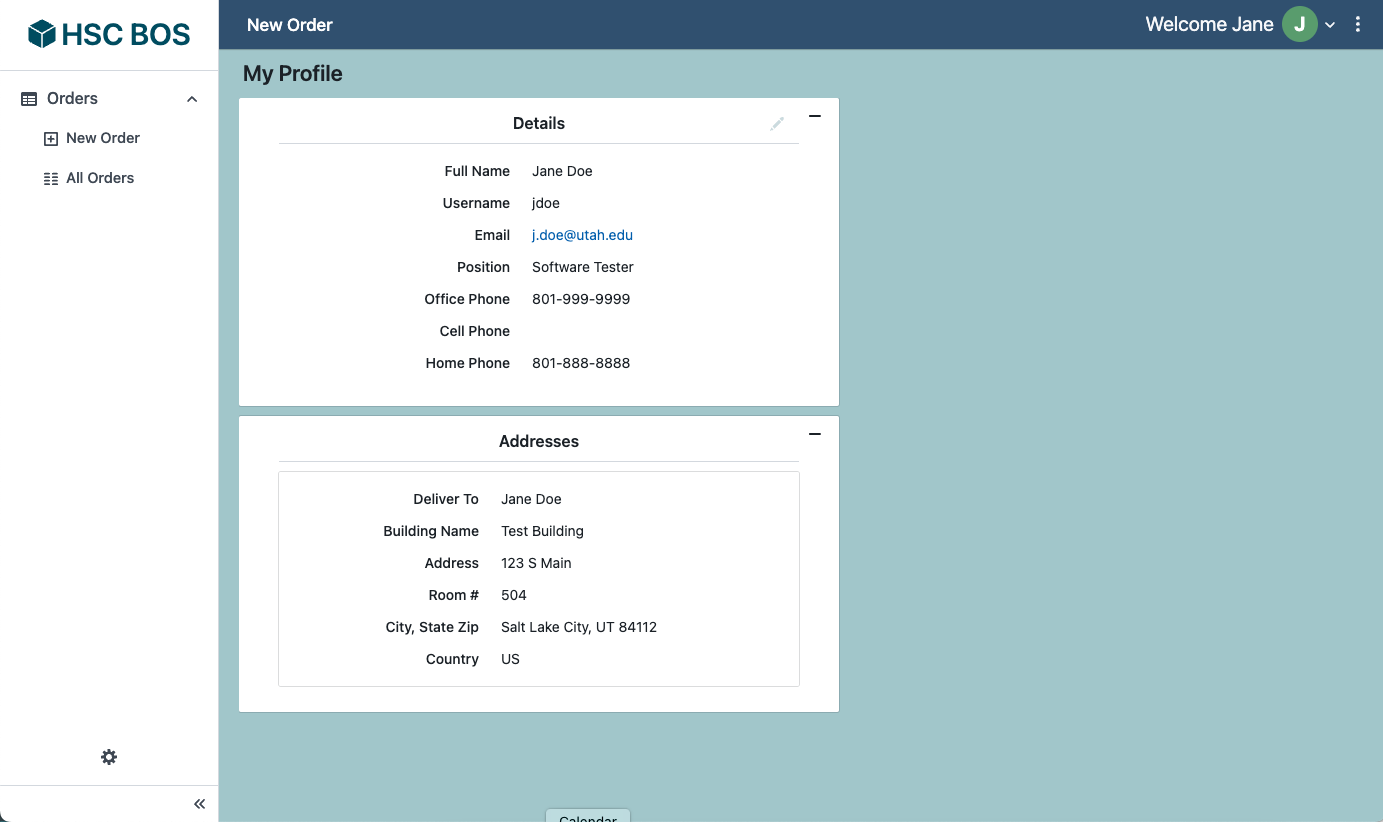
![Profile.png](https://bookstack.cores.utah.edu/uploads/images/gallery/2024-01/scaled-1680-/profile.png)

You can edit *some* user details in the **editable details box** (see details about how these work below). Fields that can be update include name, email address, position and phone numbers. Username is the user's University of Utah UNID. **Addresses** can be *added* or *edited* by the HSC Cores' [Admin Office](mailto:billing@cores.utah.edu?subject=Administration%20help%20needed%20with%20HSC%20BOS); contact them to make any necessary changes.

<details id="bkmrk-bos-editable-details"><summary>BOS Editable Detail Box</summary>

Throughout BOS, you may encounter boxes of information that is editable. These boxes can be recognized by the pencil icon in the upper right corner.

To edit information in an editable details box, click the pencil icon in the corner. This will toggle the box to be in its **edit state**.

![ProfilePage_edit_tooltip.png](https://bookstack.cores.utah.edu/uploads/images/gallery/2024-01/scaled-1680-/profilepage-edit-tooltip.png)

When a detail box is in its edit state, editable fields will become fillable. You can exit the edit state by clicking the eye icon in the corner of the box. *This will not save any changes*, but will toggle the box back to a **view only** **state**.

![ProfilePage_done_editing_tooltip.png](https://bookstack.cores.utah.edu/uploads/images/gallery/2024-01/scaled-1680-/profilepage-done-editing-tooltip.png)

If updates are required, you can follow up with any necessary changes. When one or more fields have been changed, save and undo buttons will appear.

![ProfilePage_Edited.png](https://bookstack.cores.utah.edu/uploads/images/gallery/2024-01/scaled-1680-/profilepage-edited.png)

Click 'Save' to save the changes; a confirmation notification will appear at the top of the screen upon success.

![ProfilePage_UserSaved.png](https://bookstack.cores.utah.edu/uploads/images/gallery/2024-01/scaled-1680-/profilepage-usersaved.png)

</details>

# Core Facility Management

Adding and maintaining core facilities and their users, accounts, and budgets

# Adding a New Core Facility


# Editing an Existing Core Facility


# Managing Core Facility Accounts


# Creating Budgets

# Vendor Management

Adding and maintaining vendors

# Adding a New Vendor


# Editing an Existing Vendor

# User Management

Adding and maintaining BOS users

# BOS Roles


# Adding a User


# Editing an Existing User

# Receiving and Tracking Orders

# Ops Notes

## Multi-Facility Charge Allocations

1. Create the transaction under the initial facility.
2. Allocate the charge
3. Change the transaction owning facility to the contributing facility
4. Create a new charge allocation row and select the desired account.
5. Save the allocation
6. Change the transaction owner BACK to the initial facility.